
Affinity Designer is one of the best software programs for preparing files for laser cutting: it works in pure vector, offers precise control over lines and curves, and allows exporting to the most commonly used laser formats. This guide will show you the essential settings for creating a clean, machine-readable file free of common errors.
1. Set up the document
Table dimensions
Create a new document with one of 4 different material formats:
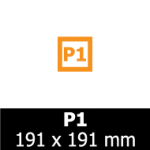
P1
useful size:
181 x 181 mm
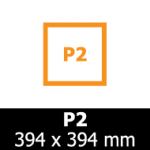
P2
useful size:
384 x 384 mm
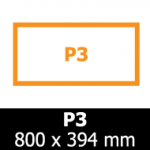
P3
useful size:
790 x 384 mm
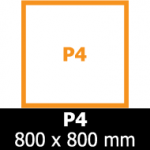
P4
useful size:
790 x 790 mm
Make sure the unit of measurement is set to millimeters.
Color mode
For laser cutting, you don't need a complex color profile. Set:
- Document color: RGB
- Profile: sRGB (standard and compatible)
2. Draw shapes suitable for laser cutting
Cutting lines
The laser interprets vector lines as paths to follow. In Affinity Designer:
- set it stroke on 0.1–0.2 pt
- use color blue (RGB 0.0.255)
- no filling, no effect
Engraving lines
To engrave instead of cut:
- stroke black or Grey
- avoid gradients, transparencies or patterns
Curves and knots
Affinity allows for precise control:
- use the Node Tool to simplify the curves
- eliminates unnecessary knots
- avoid details that are too small that the laser cannot reproduce
3. Manage complex text and shapes
Convert text to curves
To avoid missing font problems:
- Select text
- Menu Layer → Convert to Curves
Compound forms
If you use overlapping shapes:
- join with Add (boolean)
- subtract with Subtract
- make sure there are no duplicate lines or hidden segments left
4. Avoid common mistakes
Overlapping lines
Two identical lines one above the other cause the laser to pass twice. Check with:
- View → Outline Mode to see only the vectors
- Select → Select Same → Stroke Color to detect duplicate items
Raster objects
The laser does not interpret raster images (JPG, PNG). If you need to use them as a reference:
- keep them on a separate layer
- block them
- do not include them in the final export
5. Export the file for laser cutting
Recommended format: SVG or DXF