Start your project
Download our templates and open the one in the format you need with Inkscape. The formats are P1 181 × 181 mm, P2 384 × 384 mm, P3 790 × 384 mm and P4 790 × 790 mm. Not all materials are available in all formats: availability is indicated in the data sheet for each material.
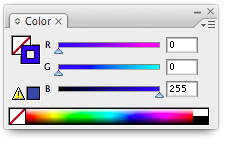
Prima di disegnare, controlla che File > Metodo colore documento (Document Color Mode) sia impostato su RGB: è il colore della traccia che dice al laser cosa fare, e in CMYK i valori non corrispondono. Blu taglia, magenta incide leggero, verde medio, rosso profondo, i grigi incidono a riempimento. Il ragionamento su come impostare un disegno producibile sta nei design tips.
How our templates work
Templates are in millimeters and in 1:1 scale.
In the template, you'll find two orange rectangles: the outer one is the actual size of the plate, and the inner one is the usable area. All elements, cuts, and engravings must fit within the smaller perimeter.
The Design Template layer is locked and it contains the template: you cannot insert elements into it and It should not be deleted before uploading. Draw on the layer Your Design. The orange lines are ignored by the laser and the estimate calculation, they serve as a reference and to confirm that the file is to scale.
Cutting lines
Disegna una linea o una forma e imposta il colore della traccia su blue RGB 0, 0, 255.
Vector engraving
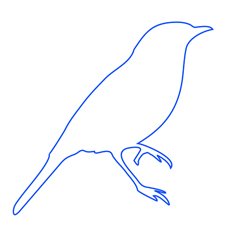
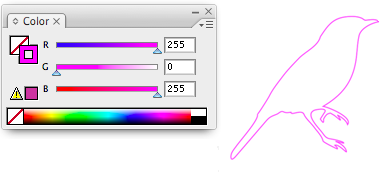
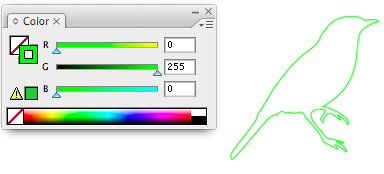
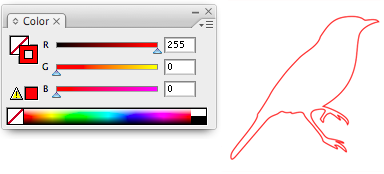
The same principle as cutting, but with a different color: the laser traces the line, engraving the surface instead of passing through the material. The three levels all have the same thin line, the intensity varies.
Light: magenta RGB 255, 0, 255
Media: Green RGB 0, 255, 0
Deep: Red RGB 255, 0, 0
Raster engraving
Raster engraving is used for solid areas. For very fine details, the result depends on the material: if the detail is critical, ask us for a proof before production.
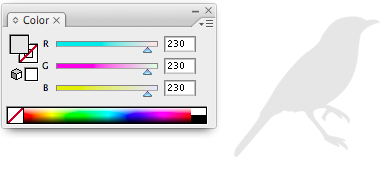
Depth depends on the gray: black is the strongest engraving, very light gray is the lightest, and white is no engraving at all. Any intermediate gray is fine as long as the three RGB values are the same. Use solid, flat fills, not patterns or textures. For a sharp edge around a raster area, combine the fill with a vector engraving stroke.
Raster leggera: grigio chiaro RGB 230, 230, 230
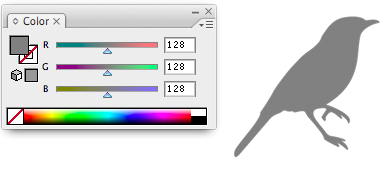
Raster media: grigio RGB 128, 128, 128
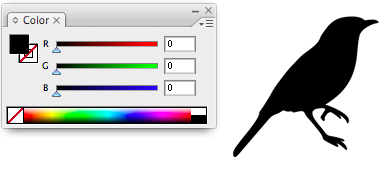
Raster profonda: nero RGB 0, 0, 0
Text
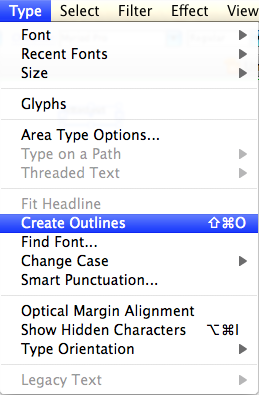
Il testo va convertito in contorni, altrimenti il laser non lo segue senza il carattere installato. Scegli Testo (Type) > Crea contorni (Create Outlines). After this command, the text is no longer editable, so do this after checking the spelling.
Spostandolo su un colore o su un riempimento scegli se inciderlo a linea, a riempimento o in entrambi i modi.
Images
Our system only reads vectors and ignores images inserted in other formats, such as .jpg or .bmp. If you want to use a non-vector image, you must trace it, and there's no need to do it manually.
Seleziona l’immagine inserita e usa Oggetto (Object) > Ricalco immagine (Image Trace); i parametri si regolano nel pannello Finestra (Window) > Ricalco immagine. Experiment a bit until the traced shapes are a flat, uniform color.
Poi usa Oggetto (Object) > Espandi (Expand). Se il ricalco ha funzionato vedi i vettori attorno alle singole parti dell’immagine. Trovi anche un rettangolo trasparente che fa da contorno al ricalco: selezionalo con lo strumento Selezione diretta, la freccia bianca, e cancellalo.
Infine seleziona tutti gli elementi ricalcati e imposta il colore di riempimento del livello di incisione raster che ti serve.
How to remove double lines
If you place two objects side by side, matching their edges, the cutting lines overlap. You can see it: a double line appears a darker blue than the others.
They must be eliminated to leave a single shared cutting line, otherwise the laser cuts the same part twice: this worsens the result on the material and increases the estimate.
Selezionala con lo strumento Selezione diretta, la freccia bianca, e premi backspace una o due volte. Resta la linea identica di blu più chiaro.
Export the file
Do not delete the Design Template layer né i contorni arancioni: sono quelli che confermano che il file è in scala. Controlla anche che tutte le maschere di ritaglio siano esplose, poi salva in .AI format.
Done, you can upload the file
Or read the FAQ.