
Canva is a simple and accessible tool for creating graphics, but with a little care it can also become a valuable ally for preparing files for the laser cutting. This guide will guide you through the essential steps to correctly set up your document, export to a compatible format, and achieve clean, precise results.
1. Set up the document
Table dimensions
First create a new project with custom dimensions.
You can design for laser cutting in one of 4 different material formats:
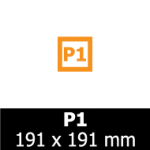
P1
useful size:
181 x 181 mm
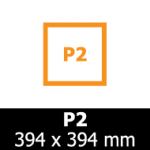
P2
useful size:
384 x 384 mm
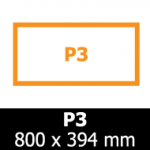
P3
useful size:
790 x 384 mm
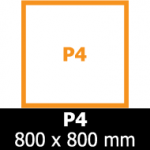
P4
useful size:
790 x 790 mm
Canva works in pixels, but you can enter measurements in millimeters: Canva will automatically convert.
Units of measurement and scale
Laser cutting requires precision. Make sure that:
- the scale is 1:1
- there are no accidentally resized elements
- line thicknesses are consistent (see next section)
2. Draw shapes suitable for laser cutting
Cutting lines
The laser interprets vector lines as paths to follow. In Canva:
- USA thin lines (0.5–1 px)
- set the color to blue (RGB 0.0.255)
- do not use shadows, blurs or effects
Engraving lines
To engrave instead of cut:
- use lines black or gray
Forms and texts
Canva doesn't generate true complex vectors, so:
- you prefer simple shapes
- convert texts to paths only if possible (otherwise use very clean fonts)
- avoid elements with transparency or gradients
3. Avoid common mistakes
Overlaps
Duplicate or overlapping lines can cause the laser to double-pass. Always check:
- that every line is unique
- that there are no hidden or off-the-table elements
Non-uniform curves
Canva simplifies curves, so avoid:
- too complex shapes
- tiny details
- intricate decorations that may not be interpreted correctly
4. Export the file for laser cutting
Recommended format
To send us the file from Canva the ideal format is Vector PDF.
In Canva:
- Go to Share → Download
- Select PDF for printing
- Activate the option “Preserve vector data” (if available)
- Turn off compression or cropping options
Conclusion
Canva isn't CAD software, but with a little care, it can be used to prepare simple files for laser cutting. If you have any questions or would like to check your file before production, you can always contact us: we're happy to help you achieve the best possible result.